

Prerequisites
You need a role with access to the Workspace settings (for example, the system roleadmin).
Access workspace settings
1
Open Settings
Open your user menu and click Settings.
2
Open General settings
In the Workspace section, click General.
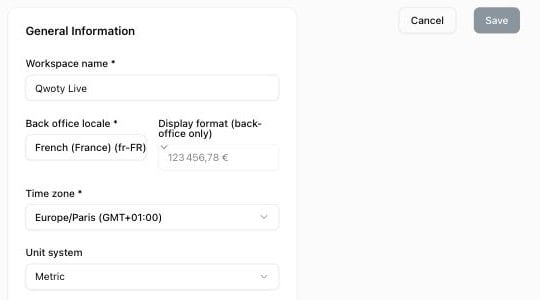
Configure general settings
1
Set the workspace name
In Workspace name, enter the name of your workspace. All team members see it.
2
Select the back office locale
In Back office locale, select the default language and regional format of the Qwoty interface. It applies to all users unless they override it in their profile.
3
Review the display format
Display format (back-office only) shows a preview of number, currency, and date formatting for the selected locale. It is calculated automatically and can’t be edited.
4
Choose the time zone
In Time zone, select the reference time zone for your workspace. It affects timestamps on quotes and activity logs.
5
Select the unit system
Choose the Unit system for your workspace: Metric or Imperial.
6
Save changes
Click Save to apply your changes.
Technical identifiers
The General settings screen also shows two read-only identifiers:- Workspace ID: technical identifier of your workspace
- Organisation ID: technical identifier of your organisation
Qwoty support and API integrations may ask for these identifiers. You can copy them when needed.
Related resources
Manage users
Invite users and assign licences and roles
Manage teams
Organize your users into teams
Developer documentation
Set up API access and integrations
Currencies and taxes
Configure currencies and taxes