

Prerequisites
Before creating your first template, make sure you have:- At least one catalog with products (first catalog)
- At least one pricebook linked to that catalog (first pricebook)
- A business unit and a team (created with your workspace)
Open the template builder
In the side menu, click Template, then click New template.Create the template
1
Fill in the basic information
In the Overview tab, enter a Name for your template (e.g., 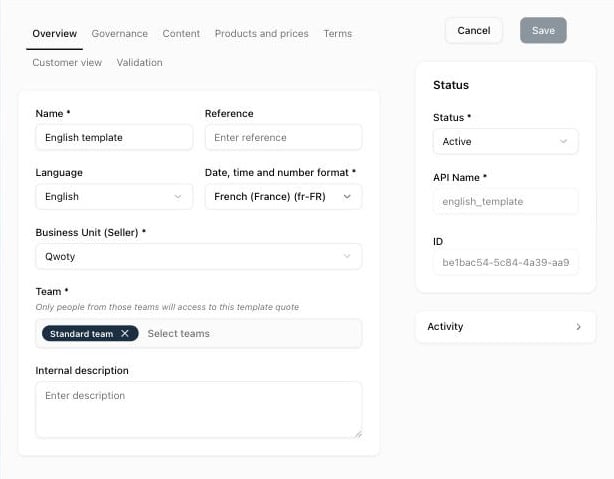
Enterprise Sales - North America).Add an optional Internal description to help your team understand when to use this template. Check the Language, Business Unit (Seller), and Team, and set Status to Active in the right panel.2
Select your catalog and pricebook
Open the Products and prices tab. Under Catalogs, click Add and select the catalog that contains the products you want to sell. Under Pricebooks, click Add and select the pricebook that defines the prices.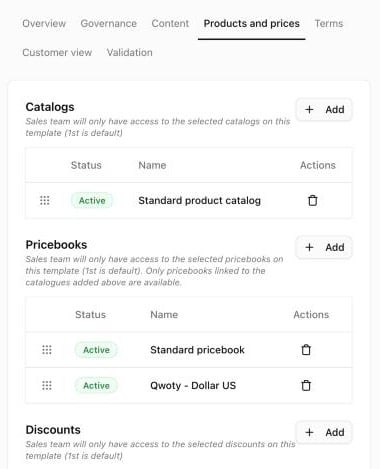
3
Configure payment terms (optional)
Open the Terms tab. Under Payments & Credits, click Add next to Payment Terms and select the terms to offer (e.g.,
Net 30). Set each one to Always displayed to insert it in every quote, or Available to let sales reps choose.Sales reps can change the payment terms per quote, among those offered by the template.
4
Attach a contract model (optional)
In the same Terms tab, under Contract & Terms, click Add and select the contract models your customers must accept. You can add them later.
5
Save the template
Click Save at the top right.
What happens next
Your template is ready. When a sales rep creates a quote and selects it, Qwoty applies:- The template’s default catalog and pricebook
- The payment terms and contracts set to Always displayed
- The template’s signature and Dealroom settings (Validation tab)
Troubleshooting
Template doesn't appear when creating quotes
Template doesn't appear when creating quotes
Check that the template is active: click Template in the side menu and check the Status column. Also check that you belong to one of the template’s teams.
The Pricebook list is empty when creating a quote
The Pricebook list is empty when creating a quote
The template has no pricebook. Open the template’s Products and prices tab and add one. Pricebooks are managed in Products & pricing › Pricebook.
Can't attach a contract model
Can't attach a contract model
Create a contract model first in Content › Contract Models, and make sure its status is Active.
Related resources
Add products to catalogs
Organize products into catalogs
Configure pricebooks
Set up your prices
Create your first quote
Use your template to generate a quote
Create a contract model
Write contracts for your templates