

Guided selling is in Beta. It’s included in the Business, Pro and Enterprise subscriptions. On other subscriptions, the Guided Selling tab of the template shows an upgrade banner.
How a journey is built
A journey is a tree, edited in the Tree tab of the builder:
Group types:
- Question: an answer that drives rules and formulas, without adding a line. Displayed as Radio buttons, Dropdown, Cards (single choice), Checkboxes, Multi-select list, Cards (multiple choice), Toggle, Number input, Free text or Date.
- Product: products to add to the quote. The list is either Declared options (products you pick one by one) or Dynamic search (the rep searches the catalog, optionally limited to some categories).
- Configured product: a product configuration that the rep completes in a sub-step.
- Calculated: a value computed by a formula, which other rules and formulas can read.
Prerequisites
- A template with at least one catalog and one pricebook linked to that catalog. See Create a quote template.
- Write access to templates.
Create the guided selling
1
Open the Guided Selling tab
In the side menu, click Template, open the template, then click the Guided Selling tab and Add.
2
Fill in the New Guided Selling window
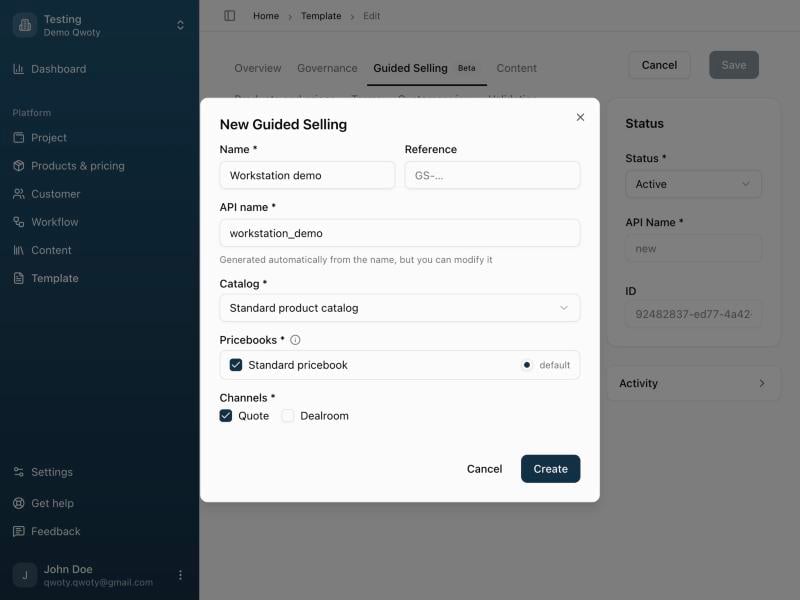
- Name *: shown to sales reps next to the template name
- Reference (optional) and API name *: the API name is generated from the name and must be unique in the workspace
- Catalog *: one of the template’s catalogs. All products of the journey come from it, and it can’t be changed afterwards.
- Pricebooks *: the template pricebooks linked to this catalog that the journey may use. Mark one as default.
- Channels *: keep Quote checked
Build the journey
1
Add steps, sections and groups
In the Tree tab, click No step yet: add the first one to build the journey. Then use the + button on each row: on a step to add a section, on a section to add a group, on a group to add an option.Click a row, then the Settings tab, to edit it. For a group, you set the Name, Required, Selection type, minimum and maximum selections, a Tooltip and a Sales tip. For a product option, you choose the Resource (the product), the price source (Inherited from pricebook, Formula or Fixed amount) and the quantity.Changes are saved as you go: the header shows Saving… then Saved.
2
Add rules
In the Settings tab of a step, section, phase, group or option, click Add rule. A rule reads: IF a group has a given answer, THEN an action, ELSE another action.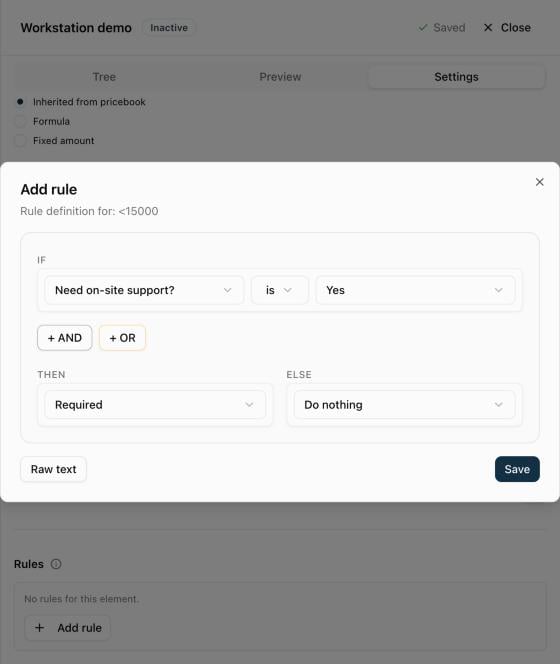
When several rules apply, Exclude wins over everything, and Hide wins over Show. An item that only has Show rules stays hidden until one is true. See Guided selling reference for every case. Click Raw text to write the rule as an expression, for example
IF({group_option.<group-id>.value} = "<option-id>", SHOW).3
Test in the Preview tab
The Preview tab plays the journey as a sales rep sees it, with the rules applied. Each step shows Valid step or Incomplete step. Click Commercial journey to open the full journey window with its Summary: lines, prices from the default pricebook, one-off total and MRR.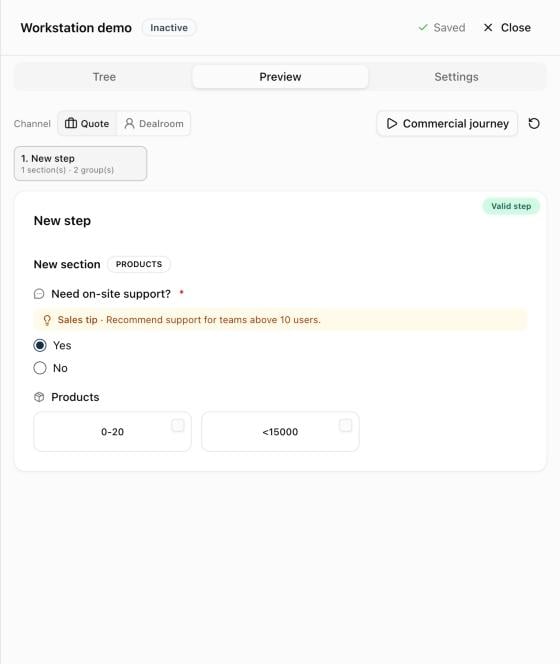
4
Activate
The header shows whether the guided selling is Active or Inactive. To activate it, click the Home row, open Settings and turn on Active. Qwoty checks the journey before activating it: errors block the activation, warnings don’t.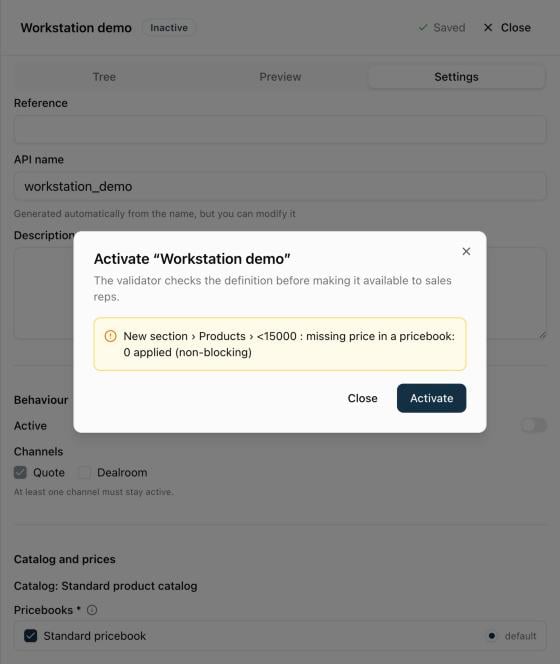
A product without a price in the pricebook isn’t blocking: it shows at 0 with the warning “Missing pricebook price”. Archived products, products outside the catalog and products of the wrong billing type are hidden from the journey. A Products section only accepts one-off products, and a Subscription phase only recurring products.
Use it on a quote
1
Create the quote
Click New quote, choose the customer, then in Template choose the entry named Template - Guided Selling, for example 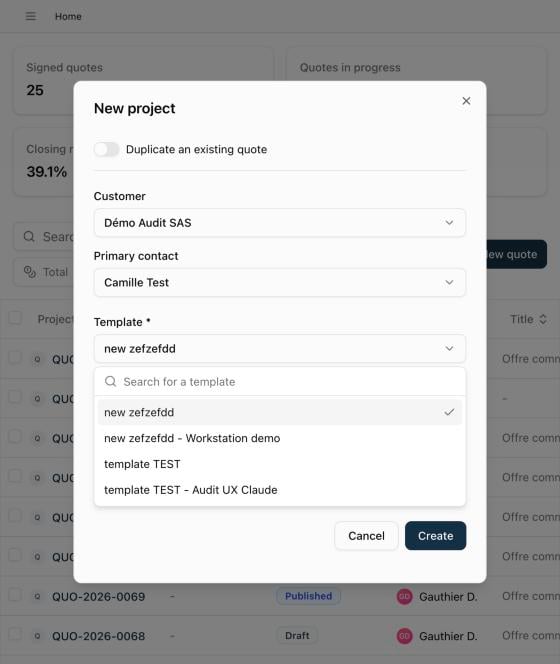
France SMB - Workstation. The catalog is set to the journey’s catalog, and only its pricebooks are offered.2
Answer the journey
The journey opens as soon as the quote opens, before the quote itself. The first time, it’s mandatory: it can’t be closed until the rep clicks Validate.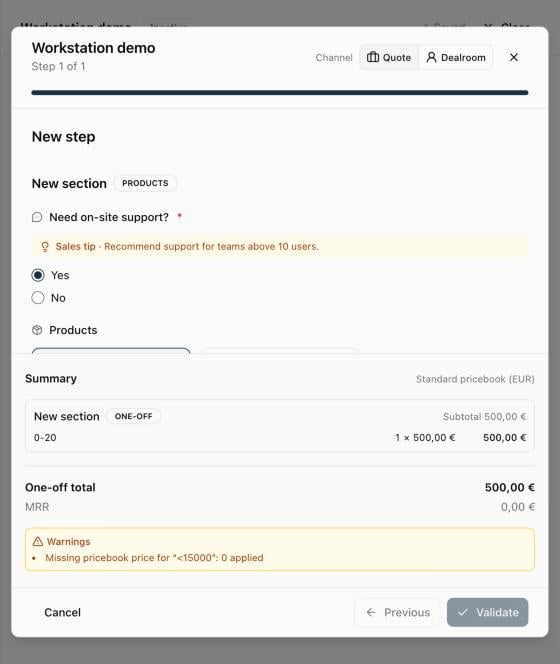
3
Save the quote
Click Save. Until the quote is saved with lines from the journey, the journey opens again each time the quote is opened.
Run the journey again
To change the answers, click the Guided selling button at the bottom of the quote. The journey starts from scratch: answers are never kept. When you click Validate, Qwoty asks Replace the previous journey?: the lines of the previous journey are removed, including any you edited by hand, then replaced. Lines you added manually are kept.Good to know
- Prices are inserted as manual prices: changing the quote’s pricebook afterwards doesn’t change them.
- The guided selling chosen at creation can’t be changed on the quote. In the quote settings, only its catalog and pricebooks are offered.
- If you change the quote’s pricebook, save the quote before running the journey again.
- The Guided selling button disappears if the guided selling is deactivated or deleted, or if your subscription no longer includes it. Lines already added stay on the quote.
Related
Guided selling reference
Structure, rules, formulas, pricing and activation checks in detail.
Create a quote template
Catalogs, pricebooks and terms of a template.
Product configurator
Configured products used in a journey.