

Prerequisites
- Your role needs write access to Workflow
- The approvers must be users of your workspace
Open the approval list
In the left side menu, click Workflow › Approval.Create the approval rule
1
Start a new rule
Click New approval.
2
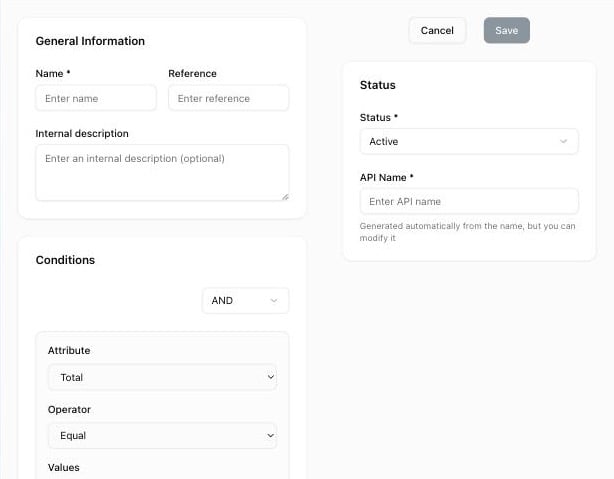
Fill in general information
In General Information:
- Name (required): for example
Margin below 20%orTotal above 50k - Reference (optional): an internal reference
- Internal description (optional): context for your team
3
Set the status
In the right panel, set the Status to Active. Inactive rules are never triggered.
Define the conditions
In the Conditions block, each condition has an Attribute, an Operator, and Values. Click Add condition to add more. All conditions are combined with AND: the rule applies only when every condition is met. At least one condition is required.Configure the approval stages
In Approval stages, configure Stage 1:1
Name the stage
Enter a Stage name, for example
Manager validation.2
Select the approvers
In Approvers, click Add approver and select one or more users. At least one approver is required.
3
Choose the approval type
In Approval type, select:
- All approvers must approve: every approver of the stage must approve
- First responder can approve or reject: the first decision applies to the whole stage
4
Add more stages (optional)
Click Add stage to add another level. Stages run in order: stage 2 starts only after stage 1 is approved. Use Remove stage to delete one.
Add external identifiers (optional)
If you integrate with other systems, fill in CRM ID, ERP ID, or Accounting ID.Save the rule
Click Save at the top right.Attach the rule to a template
A rule applies only to quotes created from a template that lists it.1
Open the template
In the left side menu, click Template and open the template.
2
Add the approval workflow
In the Governance section, under Approval workflow, click Add, select the rule in Select approval workflows, and save the template.
When a template lists several rules, they are checked in table order and the first one whose conditions are met is triggered. Put the most specific rules first.
What happens next
On a quote created from that template, the Alerts section of the quote sidebar shows whether approval is required. The sales rep clicks Request approval, the quote moves to Pending approval, and the approvers of the first stage receive an email.Related resources
How approvals work
Statuses, stages, and notifications
Submit a quote for approval
How sales reps request approval
Approve or reject a quote
Review a pending quote
Template settings
All template sections, including Governance