

How it works
- Admins set the signature defaults in the template.
- Sales reps check the signers and participants in the quote, then share it.
- The customer clicks Proceed to signature in the Dealroom, identifies themselves, and signs. The quote moves to Pending signature, then Accepted.
Set the signature defaults in the template
Admins configure the defaults in the template’s Validation tab, Esign & Sharing block:
See Template settings.
Signature modes
Set the signers in the quote
Open the quote and look at the sidebar’s Home tab. The primary contact is added automatically when you create the quote.1
Choose the signature mode
If the template allows it, choose the Signature mode: Open or Restricted.
2
Add people
In Open mode, the Participants table lists who receives the quote. Click External participants to add customer contacts, or Internal participants to add users of your workspace.In Restricted mode, there are two tables:
- Signers: click External signers or Internal signers
- View-only participants: people who receive the quote without signing. Click External participants or Internal participants
3
Set the signing order (Restricted mode)
Turn on Signing order above the Signers table, then drag signers to set the order in which they sign.
4
Remove someone
Open the row menu and click Delete, then confirm.
5
Save and share
Click Save, then Share. The participants are the default recipients of the share email. See Publish a quote to Dealroom.
What your customer does
The Dealroom follows the quote’s language. The screenshots below come from a template in French.1
Proceed to signature
In the Dealroom, the customer accepts the legal agreements, completes their information, then clicks Proceed to signature.
2
Identify themselves
The Who are you? window asks the customer to pick I am one of the recipients listed below and Choose a recipient among the signers. In Open mode, they can also pick I am not listed (create new recipient) and enter their Full name and Email. They click Continue to signature.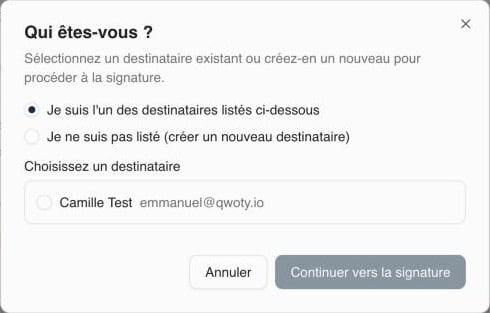
3
Sign the document
The signing page opens on 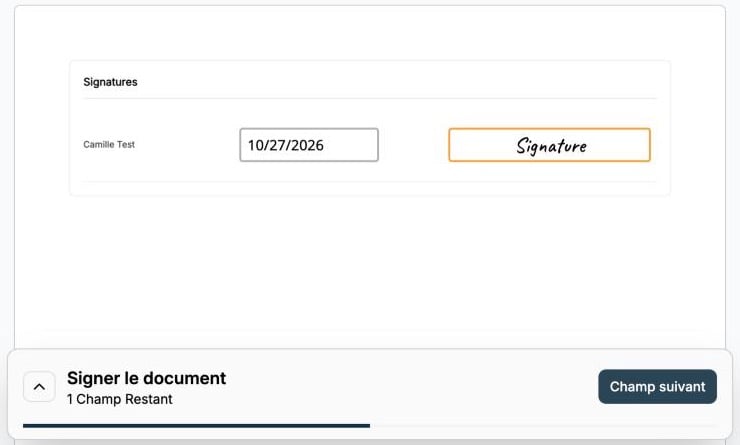

https://qwoty.app/sign/<token>, with the Documenso signature embedded. The customer fills in their name, then draws or types their signature in the signature field.4
Verify their email
A confirmation window shows the quote number and offers an email verification. Documenso sends a 6-digit code to the signer’s email; the code is valid for 5 minutes.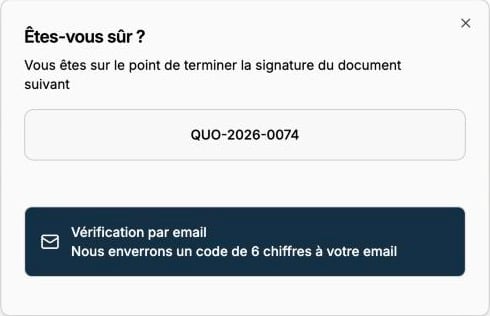
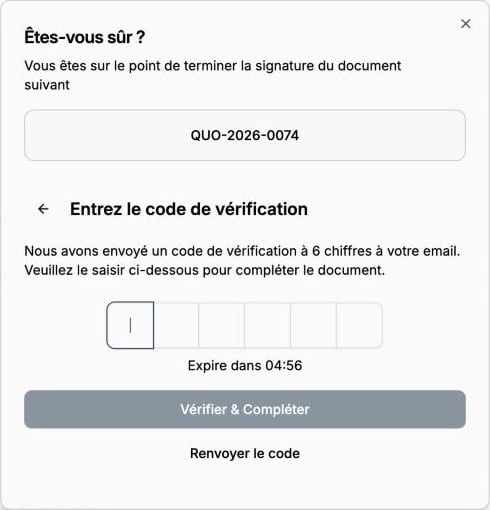
5
Done
A confirmation says the document was signed successfully, with a button to download it. The signed document is also sent by email.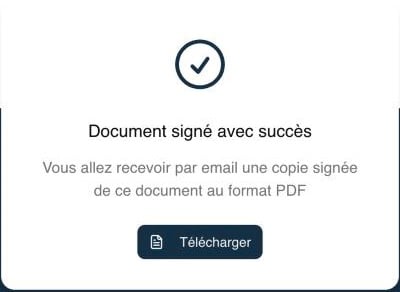
What happens next
- With several signers, the Dealroom shows “Your quote is being signed” and how many signatures are completed, until everyone has signed
- When all signatures are collected, the quote becomes Accepted. The Dealroom shows “Congratulations! Your quote is signed” with Download signed quote
- In the quote list, the accepted quote offers View PDF and Download PDF (the signed document)
Troubleshooting
The customer isn't in the Who are you? list
The customer isn't in the Who are you? list
In Restricted mode, only the quote’s signers are listed. Add the person as an external signer in the quote, save, and ask the customer to reload the Dealroom. In Open mode, they can choose I am not listed (create new recipient).
Proceed to signature does nothing
Proceed to signature does nothing
The customer must accept every mandatory contract (after opening it with Read contract) and complete their billing information first. The Dealroom highlights what’s missing.
The signature link is invalid or has expired
The signature link is invalid or has expired
The signer sees “Access Error” when the link is no longer valid. Ask them to start again from the Dealroom with Proceed to signature.
Can I edit the quote while it's being signed?
Can I edit the quote while it's being signed?
No. A quote in Pending signature shows “This quote is being signed, you cannot modify it”. To change it, use Recall to bring it back to Draft, then share it again.
Related resources
Client view
The Dealroom sections before signing
Quote lifecycle
Pending signature and Accepted statuses
Template settings
Esign & Sharing settings
Change a quote status
Accept a quote signed outside Qwoty