

POST request to your endpoint when something happens in Qwoty, for example when a quote is created or validated. Use webhooks to keep your own systems up to date without polling the API.
This page explains how to set up webhooks in the app. For the payload format and the list of event names, see Webhooks in the developer documentation.
You need a role with the Developers settings permission to manage webhooks. See Permissions reference.
Open the webhook list
1
Open Settings
Click Settings in the main navigation.
2
Open Webhook
In the Developer section, click Webhook.
Create a webhook
1
Click New
Click New at the top right of the list.
2
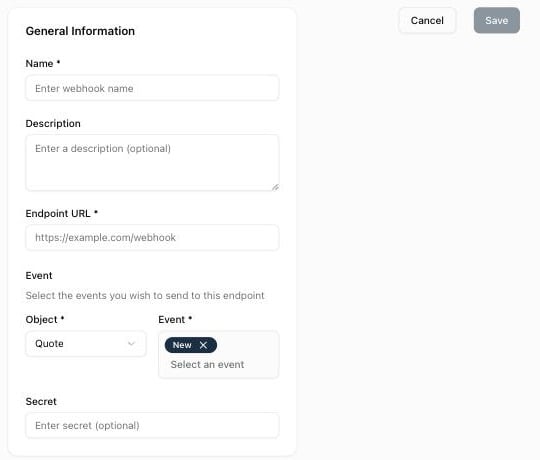
Name the webhook
Enter a Name and, optionally, a Description.
3
Enter the endpoint
Enter the Endpoint URL that will receive the requests, for example
https://example.com/webhook.4
Choose the object and events
Select the Object, then one or more Event values. “Select the events you wish to send to this endpoint.”
5
Add a secret (optional)
Enter a Secret. Qwoty includes it in the
secret field of each payload, so your endpoint can check that the request comes from Qwoty.6
Save
Click Save.
Objects and events
Each webhook listens to one object. The events available depend on the object:
To send events for several objects, create one webhook per object.
Check deliveries
The Last delivery column shows the result of the most recent request:
Qwoty waits up to 10 seconds for your endpoint to respond.
Edit or delete a webhook
Click the ⋯ menu at the end of the row and select Edit or Delete.Related resources
Webhooks (developers)
Payload format and event names.
API tokens
Call the Qwoty API from your systems.
Integrations
Ready-made connectors for CRM, billing, and messaging tools.
Settings overview
All settings sections.