

Prerequisites
- A role with write access to Products & pricing
Open product options
In the left side menu, go to Products & pricing › Product options. The page has three blocks, each with a Manage button.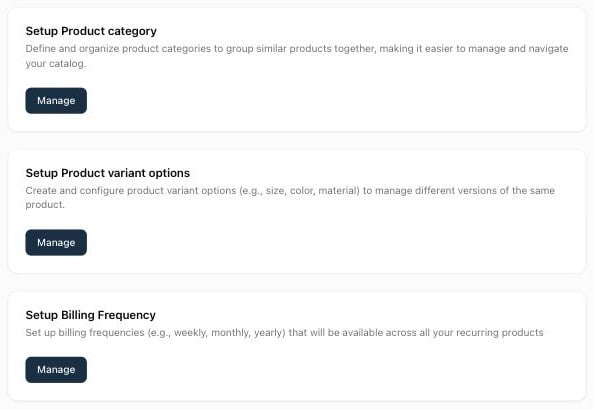
Create a product category
Categories group similar products. They can be nested to build a tree (for example, Hardware › Servers › Rack servers), and they can be used to filter products and as discount conditions.1
Open categories
Click Manage in Setup Product category.
2
Create the category
Click New category. Fill in:
- Name (required)
- Parent Category (optional): select a category to create a subcategory, or leave No parent category
- Reference and Description (optional)
3
Save
Set the Status, check the API Name, and click Save.
A category can’t be deleted while products use it or while a discount uses it as a condition.
Create a billing frequency
Billing frequencies are the intervals available for recurring prices. You need at least one to create a Recurring product.1
Open billing frequencies
Click Manage in Setup Billing Frequency.
2
Create the frequency
Click New. Enter:
- Period: the number of units (for example,
3) - Unit: Day, Week, Month, or Year
3 and Unit Month is a quarterly frequency.3
Save
Click Save.
Create a variant option
A variant option (for example, Size) has a list of values (S, M, L). You select options and values on a product to generate its variants.1
Open variant options
Click Manage in Setup Product variant options.
2
Create the option
Click New. In Create variant option, enter the option Name (for example,
Size) and its API Name.3
Add the values
In Option Values, enter a Value Name (for example,
S) and its Value API Name. Click Add Option to add each other value.4
Save
Click Save.
Related resources
Variants and options
Reference for categories, variant options, and billing frequencies
Manage variants
Generate variants from your variant options
Create a product
Assign a category and create recurring products
Configure discounts
Use categories as discount conditions